A GIF animation is a stack of still pictures shown one after another. That makes it a natural format for a before-and-after, a step-by-step screen sequence, a product turntable made from photos, or a small looping graphic. The catch is that a GIF stores every frame as a full picture limited to 256 colours, so size and quality behave very differently from a video.
Our GIF Maker from Images builds a GIF from still images you add. We tested it with sets of 2, 3, 5 and 40 frames, with mixed sizes and with a transparent PNG, then opened the downloaded files and read their real properties. This guide reports what we measured.
Step by step
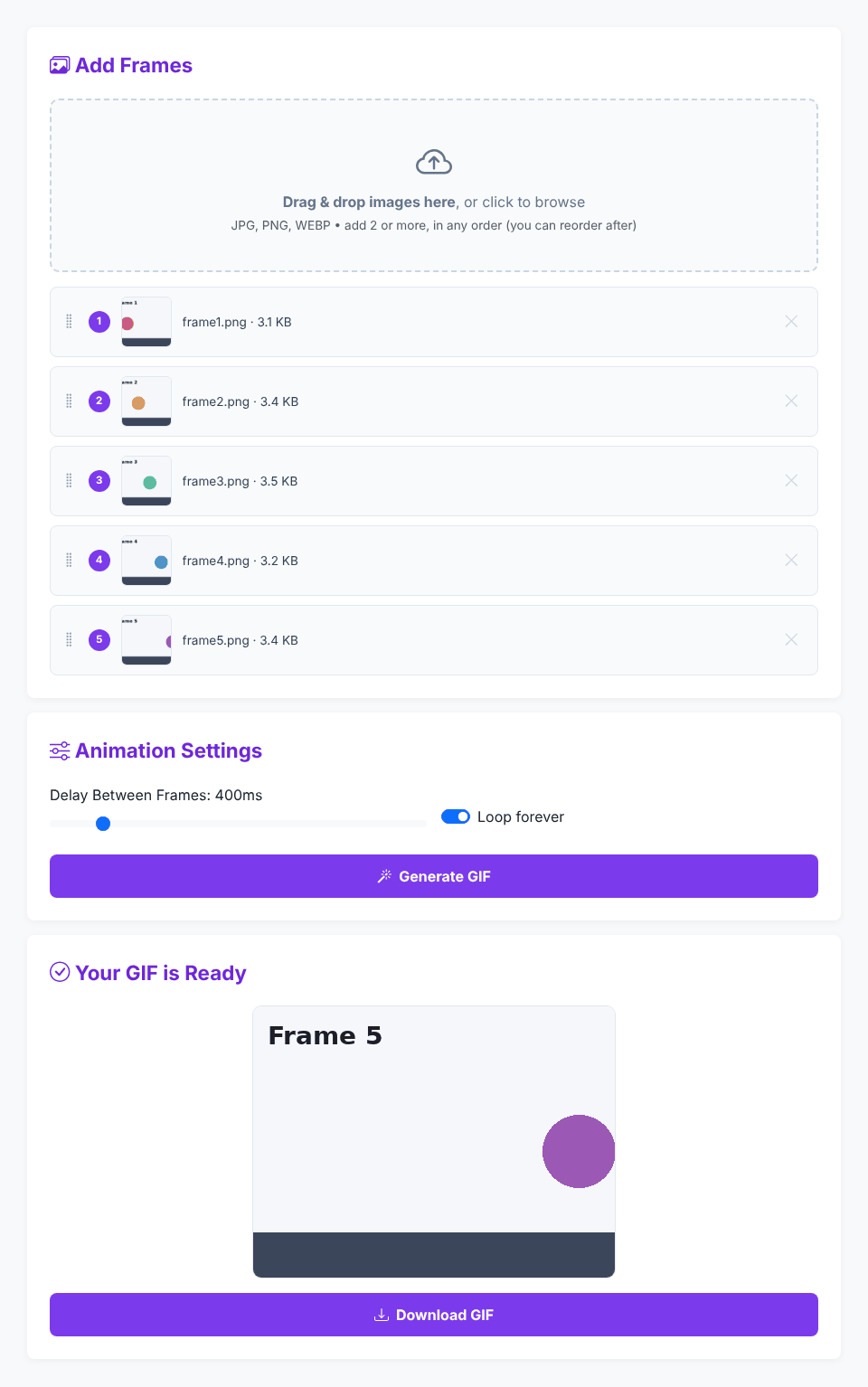
- Add images. Drop them on the drop zone ("Drag & drop images here, or click to browse") or click to pick files. Select several at once or come back and add more. The drop zone mentions JPG, PNG and WEBP; the tool accepts any file the browser reports as an image.
- Check the order. Each frame appears as a row with a number and a thumbnail, and the order is the playing order. Drag a row by its grip handle to move it. In our test, dropping frame 3 onto frame 1 put it first. Use the cross at the right to remove a frame.
- Set the delay. The Delay Between Frames slider runs from 20 ms to 3000 ms in steps of 10 ms, and starts at 400 ms.
- Choose looping. Loop forever is on by default.
- Click Generate GIF. A progress bar reads "Encoding n%". When it finishes, "Your GIF is Ready" shows a preview and a Download GIF button. The file is named like
animation-5frames.gif.
Have a set of images to animate?
Open GIF MakerWhat delay and loop really do
We checked the downloaded files with an image library that reads GIF headers:
Setting                      Frames   Frame duration   Loop
Slider 400 ms, Loop on          5        400 ms          0 (forever)
Slider 100 ms, Loop on          5        100 ms          0 (forever)
Slider 3000 ms, Loop on         5        3000 ms         0 (forever)
Slider 20 ms, Loop on           5        20 ms           0 (forever)
Slider 400 ms, Loop off         5        400 ms          no loop block
So the slider value is the time every frame stays on screen, and the same delay applies to all frames; there is no per-frame timing. A 5-frame GIF at 400 ms lasts two seconds per cycle. With Loop forever off, the file has no looping instruction, so a viewer plays it once and stops on the last frame. Delay does not change the file size: all five files above with different delays are 14,421 bytes (the no-loop one is 19 bytes smaller).
For smooth motion made from photos you usually want 80 to 150 ms. For slides that people need to read, use 1000 ms or more.
The "delay too short" warning
The page's About text says it warns you when the delay is so short that browsers may play it at a default speed. The code that does this shows the notice only when the chosen delay rounds to 1 centisecond or less (about 14 ms or lower), but the slider cannot go below 20 ms. In our test, setting the slider to its minimum showed no warning, and trying to set 5 ms snapped to 20 ms. In practice you will not see that message. The practical advice still holds: some viewers treat very short delays as slower than requested, so for dependable playback use 50 ms or more.
What happens when images have different sizes
Every frame of a GIF must have the same pixel dimensions. The tool takes the first frame as the reference: the finished GIF has exactly the first image's width and height. Every other image is scaled to fit inside that canvas, keeping its proportions, centred, with the rest filled in white. Nothing is stretched or cropped. A smaller image is scaled up to fit by the same rule.
We confirmed this with a 400 x 300 image, a 200 x 400 portrait image and a 400 x 300 transparent PNG, in that order. The output was 400 x 300. The portrait image was scaled down to 150 x 300 and centred with white bars, and the transparent PNG's see-through area turned white. Reversing the order, with the portrait first, gave a 200 x 400 GIF.
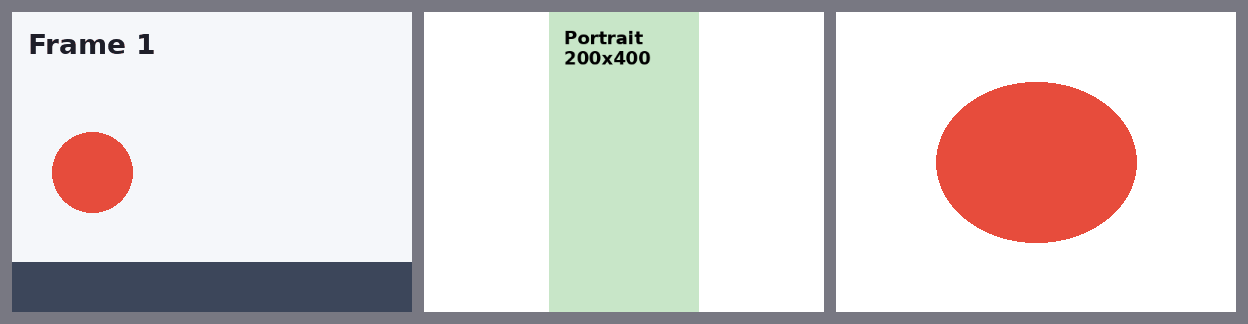
Two consequences. First, put the image that sets the size you want first. Second, a GIF made with this tool never has a transparent background, even if your PNGs do. For best results, prepare frames at one size beforehand with the Image Resizer or crop them with the Image Cropper.
The tool does not resize the first image. A 1600 x 1200 photo gives a 1600 x 1200 GIF, which is rarely what you want for the web.
How big will the GIF be?
File size depends on frame count, frame dimensions and how much the pictures change. Our measurements:
Frames                          Dimensions   File size
5 simple graphics               400 x 300      14.1 KB
40 simple graphics              400 x 300     102.2 KB
3 noisy photo-like JPEGs       1600 x 1200     2.52 MB
The first two are flat colours, which GIF handles very well. The third set was deliberately noisy; three frames of that size gave a 2.5 MB file, about 1.8 times the combined size of the three JPEG sources (1.43 MB). Real photos sit somewhere between these extremes, but the lesson is the same: the dimensions of the first frame matter more than anything else, so shrink the frames first. If the result is still too big, reduce the number of frames or the dimensions, and avoid heavy photographic noise. The tool has no quality or colour-count control: the encoder quality is fixed in the code at 10.
Encoding took under a second for the small sets, about 2.5 seconds for 40 small frames and about 3.5 seconds for the three large photos on our test machine. Large images or many frames take longer, and the page uses background workers so it stays responsive.
Problems and what to do
- "Add at least 2 images to create an animation." You clicked Generate with one frame. The settings card appears as soon as one image is added, but you need two.
- "No valid image files were found in your selection." Everything you chose was not an image (we used a text file). Files that are not images are ignored when mixed with images.
- A damaged or unreadable image. We added a PNG file with a broken body. It appeared in the list with a size of 0.0 KB. When we clicked Generate, nothing happened: no message, no result, and the button stayed on "Preparing..." and disabled. Removing the bad frame did not release the button; we had to reload the page. If Generate seems stuck, look for a frame listed at 0.0 KB, reload, and add only good files.
- An animated GIF used as an input. We did not test this. Because the tool draws each image onto a canvas once, expect only one still frame from it.
- The animation looks too fast or too slow. Change the slider and generate again. Only the delay changes, and the file size does not.
- Colours look rough. GIF allows 256 colours per frame, so gradients and photos show banding. This is a limit of the format. For photographic animation, a short video is a better format.
Each time you click Generate, a new file is built from the current frames and settings. Nothing is saved between visits.
Privacy
The tool's scripts, including the GIF encoder and its worker, are served from the site itself. During our test the only external requests were for the page's styling, Bootstrap and icon font. No request carried an image anywhere: the frames are read in the page and the GIF is built in your browser. The Contact tab has a feedback form that posts what you type to the site; it is separate from the converter.
Quick answers
How many frames can I use? We found no limit in the code. We tested up to 40 without trouble. Memory and time are the real limits.
Can I set a different delay for one frame? No. One delay applies to every frame. To hold one picture longer, add it more than once.
Does it keep transparency? No, see the section on sizes: transparent areas become white.
Can I choose the output size? Not directly. It follows the first frame, so resize that image first.
Can I make a video? No, only GIF. Use a different format if you need sound or smaller files.
Can I reuse the file anywhere? Check that you have the right to use your source images. The tool only combines them.
Have a set of images to animate?
Open GIF Maker