A PDF that will not attach to an email, or that a web form rejects for being over the size limit, is usually big for one reason: it contains pictures. A scanned contract is a stack of page-sized photographs. A brochure is a handful of high-resolution images with a few lines of text on top. Plain typed text, on the other hand, is already tiny. Knowing which kind of file you have tells you whether compression will work wonders or do nothing at all.
Our Compress PDF tool takes a particular approach, and it is important to understand it before you use it. This guide explains how it works, shows the results we measured on three different test files, and tells you when to use it and when to leave your PDF alone.
How this tool shrinks a PDF
Many compressors look inside the PDF, find the embedded images and recompress only those. This tool does something simpler. It draws each page into an image, saves that image as a JPEG, and builds a new PDF out of those JPEGs. The new pages keep the physical size of the originals; we checked that an A4 input (595 x 842 points) came out as an A4 PDF.
This has one big consequence: every page in the result is a picture. In our tests, the original text PDF contained 5,735 characters of extractable text on its first page, and the compressed version contained none. You cannot select, search or copy text from the output, and screen readers cannot read it. Links, bookmarks and form fields do not carry over either, because the new file is made only of page images.
The tool is upfront about this in a yellow notice at the top of the page. The advantage is reliability: it works the same way no matter which program created your PDF.
Step by step
- Add your file. Drag a PDF onto the drop zone ("Drag & drop a PDF file here, or click to browse"). One file at a time.
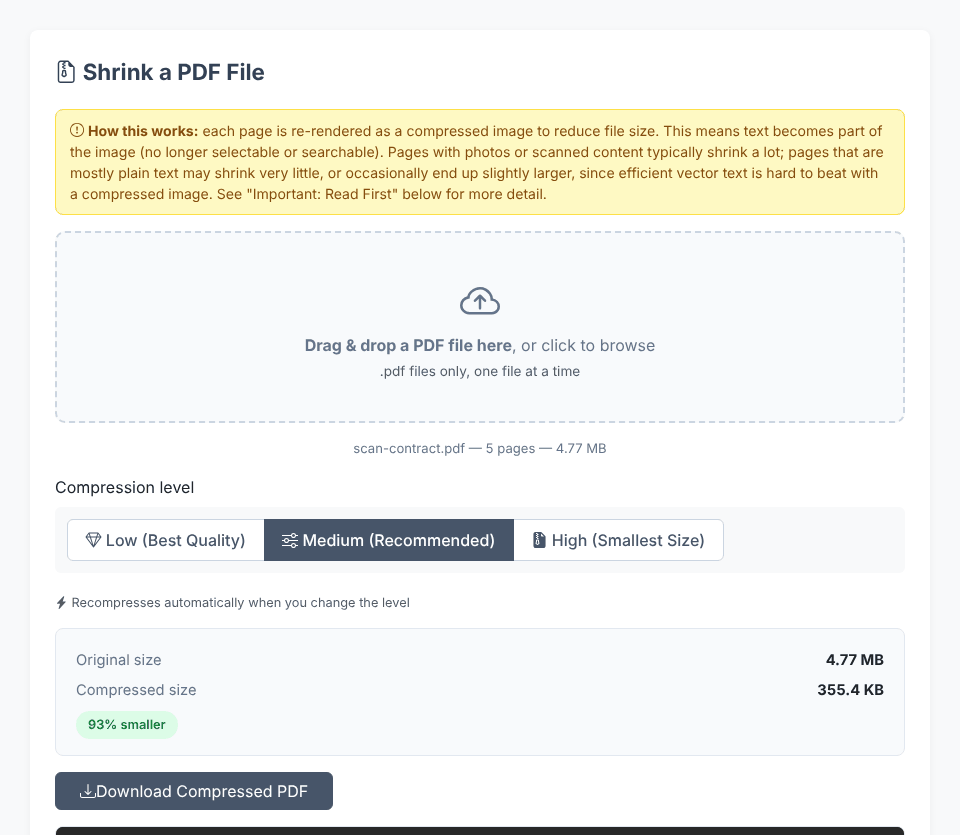
- Wait for the first result. The tool shows the file name, page count and size, then compresses at the default level, Medium (Recommended), with progress such as "Compressing pages (3/5)...".
- Compare sizes. The result box shows Original size, Compressed size and a badge such as "93% smaller".
- Change the level if needed. Choose Low (Best Quality), Medium (Recommended) or High (Smallest Size). The file recompresses automatically.
- Check the preview, then click Download Compressed PDF. The file is saved with
-compressedadded to the name, for examplescan-contract-compressed.pdf.
What Low, Medium and High actually change
Each level is a pair of settings: the resolution at which pages are drawn (relative to the page's physical size) and the JPEG quality.
Level                     Render scale   JPEG quality
Low (Best Quality)             2x             0.90
Medium (Recommended)          1.5x            0.75
High (Smallest Size)           1x             0.50
At 1x, a page is drawn at 72 pixels per inch of paper, which is about screen resolution. That is fine for reading on a monitor and visibly soft when printed or zoomed. At 2x you get roughly 144 pixels per inch.
Real results on three test files
We built three PDFs and ran each through all three levels in a real browser. Sizes are what the tool displayed.
File                                    Original   Low        Medium     High
Scanned contract (5 pages, scan JPEGs)   4.77 MB    1.37 MB    355.4 KB   88.3 KB
Photo brochure (6 pages, 6 photos)       4.60 MB    555.0 KB   205.7 KB   92.7 KB
Typed report (10 pages, text only)       10.8 KB    6.38 MB    3.07 MB    1.09 MB
The scan and the brochure shrank by 71% to 98%. The text report went the other way: a 10.8 KB file turned into a 1 to 6 MB file at every level. The tool detects this and shows "No reduction (result is ... larger)", with advice that the original is probably the better file to keep.
These test files are synthetic, so your own percentages will differ. A real phone scan or a photographic brochure will behave like our first two rows, which is the point: compression gains come from images.
Got a PDF that is too big to send?
Open Compress PDFHow much quality do you lose?
Below is the same text page from our report rendered at each level. Text that was sharp vector type is now pixels, and the High level shows the softening and JPEG noise around the letters.
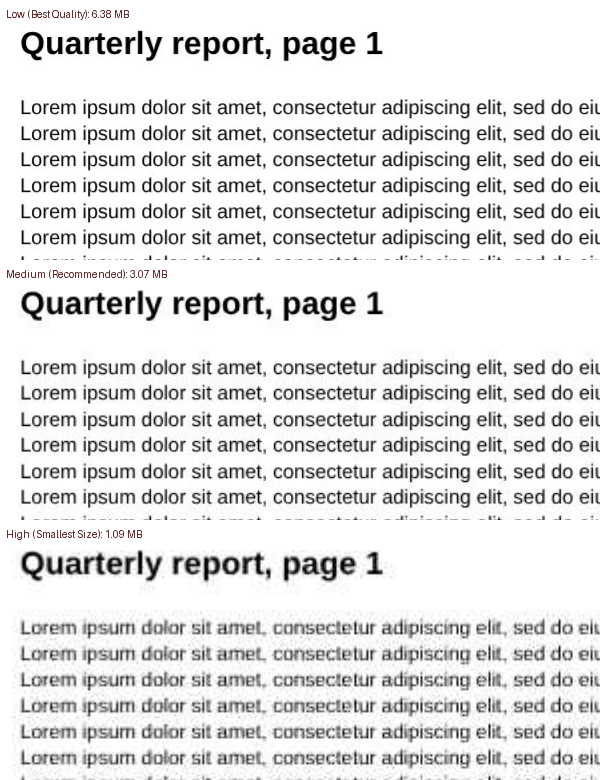
For a scanned contract or a photo, the loss is usually acceptable at Medium. If the document has small print, fine tables or signatures that must stay legible, start with Low and only drop to High if you are still over the limit. When you must print the result, avoid High.
When compression helps and when it does not
Good candidates
- Scanned documents (contracts, receipts, forms signed on paper).
- Brochures, catalogues and presentations exported with full-size photos.
- PDFs made from phone photos, for example with our Image to PDF tool.
Poor candidates
- Anything typed that you want to keep searchable, such as contracts, theses and reports. Search and copy will stop working.
- Files that rely on links, bookmarks or fillable fields.
- Documents that are already small. A 10 KB text PDF is better left alone, as the table above shows.
- Anything that needs accessibility support, since a page image has no text for assistive software.
If your original is text-based and large, the better fix is usually at the source: re-export from the program that made it with an image-quality or "reduce file size" option, or shrink the photos before inserting them, with the Image Compressor.
Common problems and fixes
- "Please select a valid PDF file." You picked a file that is not a PDF. We tried a plain text file and got this message.
- "Failed to read this PDF — it may be corrupted or password-protected." This is what appeared when we loaded a PDF protected with a password. The tool has no password field, so remove the password first (with our Unlock PDF tool, if you know it), then compress.
- The result is still too big. Switch to High. If that is not enough, split the file into parts with Split PDF and send them separately, or send a link instead of an attachment.
- The result is blurry. Go back to Medium or Low. Output grows with the level, so there is a direct trade between size and sharpness.
- The text cannot be selected. This is expected; see the first section. Keep the original for anything that must stay searchable.
One more detail: compression runs in your browser, so large files with many pages take longer, and each change of level recompresses everything. A long scan may take a while, so give it a moment.
Is your file uploaded?
No. We watched the browser's network requests while compressing all three test files. The page loaded its libraries (pdf-lib and PDF.js, from a CDN) and, once, a local blob for the preview, but the PDF itself was never sent anywhere. The processing code reads the file in the page and builds the new PDF in memory. The only network call in the tool's own code is the optional feedback form on the Contact tab.
That makes it reasonable for personal paperwork. Still, treat sensitive documents with normal care: after downloading, delete files you no longer need from shared folders and downloads.
Quick answers
Is there a file size limit? The tool does not set one. The practical limit is your device's memory and patience, since each page is rendered and encoded in the browser.
Will the page size change? No. Pages keep the original dimensions; only the image resolution inside changes.
Can I compress again to go smaller? You can, but quality drops each time because the JPEG is re-encoded. It is better to run the original once at a stronger level.
Does it remove metadata? The output is a new document built from images, so original properties such as title and author are not copied over; in our test the output listed pdf-lib as its producer and creator. Use the PDF Metadata Editor if you want to set them again.
Got a PDF that is too big to send?
Open Compress PDF