The Interactive Countdown Timer counts down to a fixed moment, such as a launch, a deadline, a flight or an exam. You can keep several countdowns on the page at once and it can play a sound when one reaches zero. That sounds simple, but a few details decide whether it does what you expect: the time zone your date is read in, what happens to the alarm if the page is closed, and where your list is stored. This guide covers those, based on running the tool with a controlled test clock and in several time zones.
If you want a timer that counts a length of time (25 minutes, say) rather than a date, that is a different job: see the Pomodoro Timer or the Stopwatch. This tool counts down to a calendar date and time.
Adding a countdown
- Type a name in Event name. It can be up to 60 characters; the box stops accepting more.
- Choose a date and time in Target date & time. This is your browser's date-and-time picker, so its look depends on your browser and system language.
- Leave Play a sound alarm when a countdown reaches zero ticked if you want the beeps.
- Click Add. A card appears with the name, the target date and four boxes: Days, Hours, Min and Sec. The form clears so you can add another.
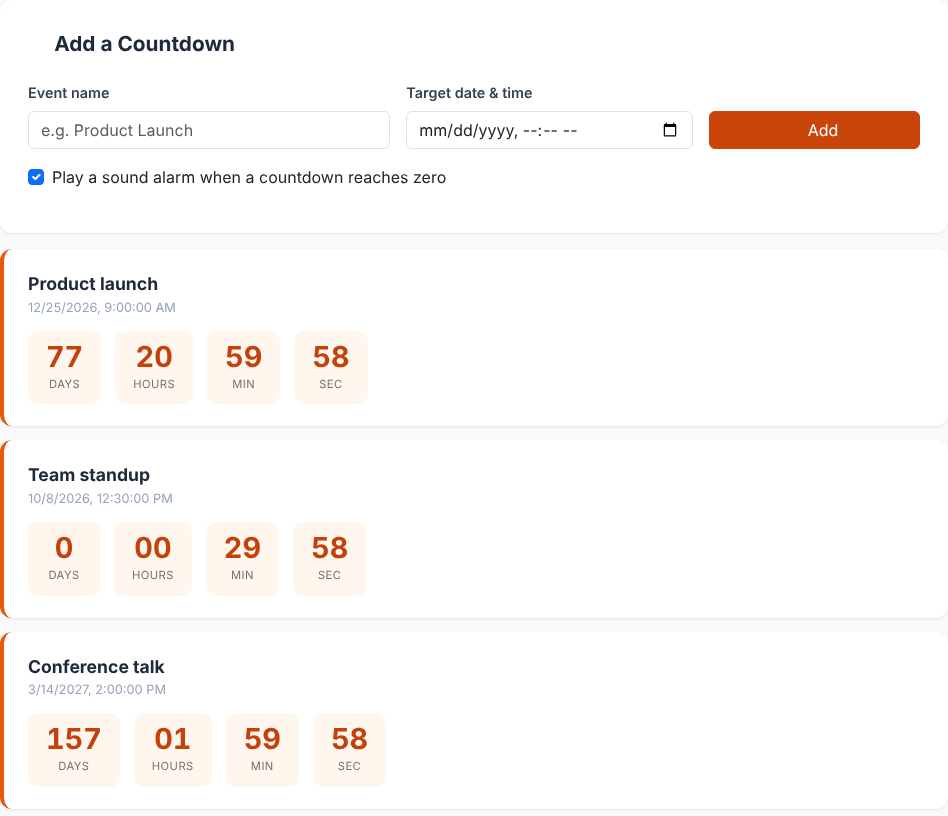
Each card updates every second. Days are not converted to weeks, months or years, so a date ten years ahead shows as thousands of days (we saw 3652 days, 23 hours, 59 minutes and 58 seconds, two seconds after setting a target of exactly ten years ahead, a period that includes two leap days).
To remove a countdown, click the trash icon on its card. There is no confirmation, no edit option and no reordering: cards stay in the order you added them, not sorted by date. To change a date, remove the card and add it again.
Counting down to something?
Open the Countdown TimerThe error messages
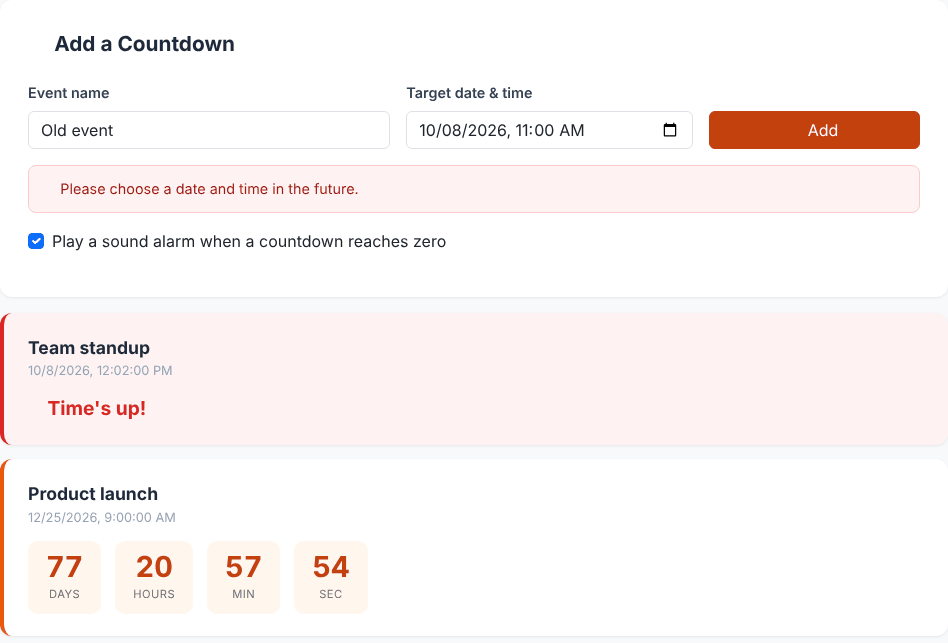
The form checks for three problems, in this order, and shows a red message above the checkbox:
- Please enter a name for this event. The name box is empty or contains only spaces.
- Please choose a target date and time. The picker is empty. (Name is checked first, so with both empty you see the name message.)
- Please choose a date and time in the future. The chosen moment is now or already past. With a test clock set to 12:00, a target of 11:00 the same day and a target of exactly 12:00 both gave this message.
Time zones: your date is read in your local time
The picker has no time zone field. The value you pick is interpreted in your browser's time zone, then stored as one exact moment in time. We entered the same wall-clock value, 2099-12-31 23:59, in three time zones and looked at what was saved:
Asia/Jakarta (UTC+7)       saved as 2099-12-31T16:59:00.000Z
America/New_York (UTC-5)   saved as 2100-01-01T04:59:00.000Z
UTC                        saved as 2099-12-31T23:59:00.000Z
So "23:59 on New Year's Eve" is a different instant depending on where the person is. That is what you want for a local event ("my exam is at 9:00 here"). For an event that happens at one moment worldwide, such as a product launch announced in another time zone, convert the announced time to your own zone first, for example with the Time Zone Converter & Meeting Planner, and enter that.
The card shows the target date written in your computer's date format (for example 12/25/2026, 9:00:00 AM in a US-English browser). Because the saved value is an absolute moment, the countdown keeps pointing at the same instant if you later change your computer's time zone, while the displayed target time changes to the new local time. We did not test dates that fall inside a daylight-saving gap or overlap; if your event is on a clock-change night, double-check the displayed target.
How accurate is it, and what about background tabs?
The countdown does not subtract one second per tick. On every tick, once a second, it reads the current clock and subtracts it from the target, then shows the whole days, hours, minutes and seconds remaining (partial seconds are rounded down). As a result the numbers cannot drift over time, they follow your device's clock, and a change of the device clock is reflected on the next tick.
We tested this by moving a test clock forward one minute in a single step: the next display was one minute lower, plus the second that had elapsed, exactly the new difference. Browsers may slow down timers in tabs that are hidden or in the background, so the numbers may refresh less often while you are looking at something else, and an alarm might sound a little late. The next time the page does update, it shows the true remaining time.
The browser tab title also helps when you are in another tab: it shows the nearest unfinished countdown, for example 77d 13h 59m - Product Launch | Countdown Timer (days, hours and minutes plus the name). When the nearest one finishes, the title moves on to the next.
What the alarm does, and when it will not sound
When a countdown reaches zero its card turns red and shows Time's up!. If Play a sound alarm is ticked at that moment, the page plays three short 880 Hz beeps about a third of a second apart (we counted three tones being scheduled in the browser's audio engine). Volume is fixed, and there is no snooze or stop button because the sound ends by itself after about a second.
Treat the alarm as a convenience rather than something to rely on, for these reasons that we saw or can read directly in the code:
- It plays once. Each countdown has an "alarm done" flag that is set the first time it expires, whether or not a sound played.
- Unticking the box silences it for good. We unticked the checkbox before a countdown expired: no tones played, and the flag was still set, so ticking the box afterwards does not bring the alarm back. The checkbox setting is not saved, so it is ticked again each time the page loads.
- The page has to be open. The page makes the sound itself; nothing runs when the tab is closed. There is no browser notification, email or vibration.
- Reopening after the time passed does not give you the alarm. We stored a countdown that had already expired and reloaded: the card showed Time's up! and the page tried to play the beeps, but the browser's audio engine was in a suspended state, which is what autoplay rules cause when there has been no click on that page load. The flag was set, so the alarm will not be tried again. In practice, the sound is reliable only if you clicked Add in the tab and left it open, since that click lets the page start audio.
- The sound is not a loud, repeating alarm. If you must not miss the moment, also set a calendar or phone alarm.
Where your countdowns are stored
The list is saved in your browser's local storage on this device, under the key countdown-timer-list-v1, as the name, the target moment and the alarm flag. It survives a reload and a browser restart. We reloaded the page with two countdowns saved and both came back, with correct remaining times. It is not synced:
- Another browser, another device, or a private/incognito window starts with an empty list.
- Clearing site data for the page, or a browser setting that deletes data on exit, removes the list.
- If the saved data becomes unreadable the page starts with an empty list rather than showing an error (we tested this with invalid data).
Expired countdowns stay on the page, with the red card, until you remove them.
Putting it to use
- Launches and deadlines. Add the date and time in your own zone. With a test clock at 12:00 on 8 October 2026, a 9:00 launch on 25 December showed 77 days 20 hours 59 minutes 59 seconds one second later, which matches our separate calculation of the same interval.
- Several things at once. Give each event a clear name: the names appear on the cards and in the tab title.
- On a screen in the room. The page has no full-screen mode of its own. On a desktop browser you can use the browser's full-screen command (F11 on Windows and Linux) and keep the countdown list in view, or zoom the page.
- Sharing. There is no link or export, so to share a countdown with someone else, send them the date and let them add it themselves.
What it does not do
- No time zone choice, repeating events, or editing a countdown after it is added.
- No pause or reset; it counts to a fixed moment.
- No seconds in the target: the picker works to the minute, so a countdown always ends at the start of a minute.
- No sync between devices, no sharing link and no notifications outside the open page.
Privacy
Event names and dates stay in your browser. We watched the network while adding, removing and reloading countdowns: after the page had loaded, no requests were made. The page loads Bootstrap and an icon font from a public CDN when it opens, and the site may show ads from third-party networks that run separately from the tool. Names are displayed as plain text: an event name containing HTML such as <img src=x onerror=...> was shown literally and nothing ran.
Quick answers
Why does my countdown show a different time from the picker? Check the time zone of your device; the picker and the card both use it.
Will the countdown keep running if I switch tabs? Yes, and it will show the correct time when it next refreshes, though the refresh may be slower while the tab is hidden.
Will it still be there tomorrow? On the same browser and device, yes, unless site data is cleared.
How many countdowns can I add? The code has no limit; each is a short entry in local storage.
Is it a timer for a duration? No, it targets a date and time. For a set duration, use the Pomodoro Timer.
Counting down to something?
Open the Countdown Timer