A linear (1D) barcode is a row of bars and gaps that encodes a short string, read by sweeping a laser or camera across it. It is the format behind supermarket checkouts, parcel labels and library books. The hard part is rarely drawing the bars. It is choosing the symbology (the encoding scheme) that fits your data, and knowing the rules each one imposes: length, allowed characters and check digits. This guide covers the twelve types in our Line Barcode Generator, with results from actually generating codes with it and decoding them with ZXing and OpenCV, two independent open-source readers.
Which barcode type should you use?
Start from what the barcode is for.
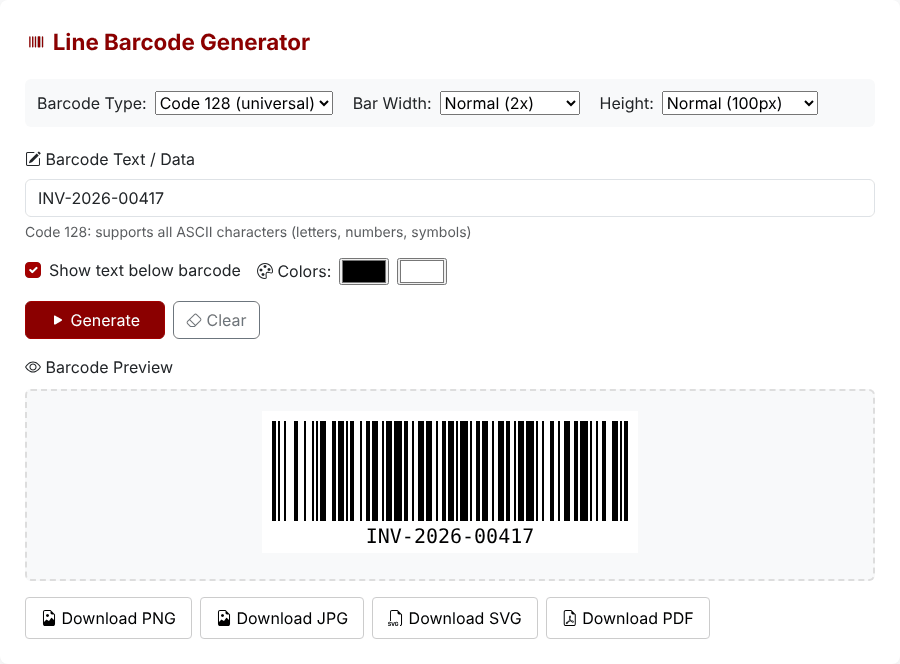
- Your own labels (inventory, asset tags, order numbers, badges): Code 128. It encodes the full ASCII set, and it is compact. In the tool it is the default, labelled "Code 128 (universal)".
- Legacy systems that insist on Code 39: uppercase letters, digits and a few symbols only.
- Retail products: EAN-13 (worldwide), UPC-A (North America) or EAN-8 (very small packages). The numbers in these come from GS1, the standards body, so do not invent them for products you plan to sell in shops. For internal testing they work fine.
- Books: the ISBN option, which draws the 13-digit ISBN as an EAN-13.
- Cartons and shipping: ITF-14 for outer cases, GS1-128 for logistic labels carrying several data fields, and SSCC for a unique pallet or parcel ID.
- Specialist uses: Codabar (libraries, blood banks, some courier labels), MSI Plessey (inventory shelf labels) and Pharmacode (pharmaceutical packaging).
If you need to store a URL, a long text or more than a few dozen characters, a 1D code is the wrong tool. Use a QR code or a 2D barcode instead.
How to generate a barcode, step by step
- Pick a Barcode Type. A line of grey help text under the input box changes to describe that type's rules.
- Enter your value in Barcode Text / Data. The preview redraws as you type, and the Generate button redraws on demand. Clear empties the box and shows the prompt "Enter text above to generate barcode".
- Set Bar Width (Narrow 1x, Normal 2x, Wide 3x, Extra Wide 4x) and Height (60, 100, 150 or 200 px).
- Tick or untick Show text below barcode, and choose the bar and background colours with the two colour pickers.
- Download with Download PNG, Download JPG, Download SVG or Download PDF. The files are called
barcode.png,barcode.jpg,barcode.svgandbarcode.pdf. - Scan the file before you print hundreds of labels.
What each type accepts, tested
We fed the tool valid and invalid values for every type and decoded each result. The table below summarises what we saw. "Decoded" means ZXing returned the value shown.
Type        Input                       Result
Code 128    Hello, World! #42           decoded as typed
Code 128    é                           error (non-ASCII)
Code 39     abc-123                     drawn as ABC-123
Code 39     A_B                         error
ITF-14      1234567890123 (13 digits)   check digit added: 12345678901231
ITF-14      12345678901234              error (wrong check digit)
EAN-13      590123412345 (12 digits)    check digit added: 5901234123457
EAN-13      5901234123458               error (wrong check digit)
EAN-8       9638507 (7 digits)          check digit added: 96385074
UPC-A       03600029145 (11 digits)     check digit added: 036000291452
Codabar     123456                      A added at both ends: A123456A
ISBN        9780306406157               decoded as EAN-13
ISBN        978-0-306-40615-7           error (hyphens)
GS1-128     0100614141007349            decoded as (01)00614141007349
SSCC        1234 5678 9012 3456 75      decoded as (00)123456789012345675
SSCC        12345                       error naming the digit count
Two details are worth remembering. First, the help text says EAN-13 needs "exactly 13 digits", but the tool also accepts the 12 digits without the check digit and calculates the last one for you. The same is true for the other numeric types: 7 digits for EAN-8, 11 for UPC-A, 13 for ITF-14. Second, if you type all the digits yourself and the check digit is wrong, the tool does not correct it; it simply fails.
Check digits, and why a "wrong" number is rejected
Retail barcodes end with a check digit, calculated from the others so that a misread is caught immediately. For EAN-13 the rule is: starting from the left, add the digits in odd positions, add three times the digits in even positions, and the check digit is what brings the total up to the next multiple of ten. For 590123412345 that is 17 + 3 × 22 = 83, so the check digit is 7, which is exactly what the generator appended to give 5901234123457. If you typed 5901234123458 yourself, the tool refuses it, which is the useful behaviour: a barcode with a bad check digit would be rejected by every till.
The generated EAN-13 and UPC-A images were also read back by OpenCV's barcode detector as 5901234123457 (EAN-13) and 036000291452 (UPC-A). ZXing reports a UPC-A as an EAN-13 with a leading zero, which is normal, since the two are the same symbology family.
Ready to make a barcode?
Open the Line Barcode GeneratorWhen you see "Invalid data format"
Every failure except SSCC shows the same sentence: Invalid data format for the selected symbology rules. It does not say what is wrong, so check these in order:
- Is the type right? Letters in an EAN, UPC, ITF-14 or MSI barcode are rejected. Switch to Code 128 if you need mixed text.
- Is the length right? Compare your digit count with the help text under the input box. Remember the 12-instead-of-13 shortcut.
- Is the check digit wrong? Delete it and let the tool calculate it.
- Does the text have hyphens, spaces or non-ASCII characters? ISBN with hyphens fails, and so does a Code 128 value containing an accented letter.
- Is it a number in range? Pharmacode accepts 3 to 131070. We confirmed 2 and 131071 are rejected.
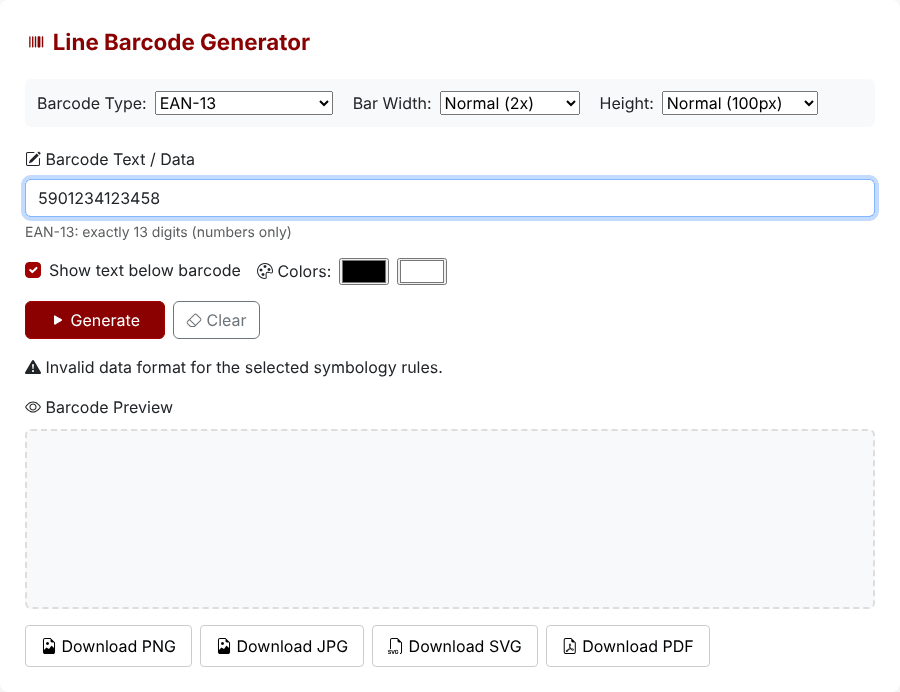
Watch out: after an error, the preview empties, but the download buttons stay active, and they save the last barcode that did draw. In our test, clicking Download PNG after the error above saved the earlier INV-2026-00417 image. Check the preview before every download.
Size, colour and scanning
The output is a PNG drawn on a canvas, and its pixel width comes from the bar width. For the 14-character value INV-2026-00417 in Code 128, the image was 198 pixels wide at 1x, 376 at 2x, 554 at 3x and 732 at 4x. The image is taller than the Height setting: 42 pixels more when text is shown (a 100 px setting gave 142 px) and 20 pixels more without it. All sixteen width and height combinations decoded in ZXing.
- Printing: on screen, 1x works; on paper, thin bars blur with the ink. Use 2x or larger as a starting point, and check with the scanner that will read the label.
- Margins: the tool leaves a 10 px blank margin on each side. A barcode needs blank space around it, so keep white space around the image when you place it in a layout.
- Colours: dark bars on a light background decoded in every test: black, red, dark blue, grey and even yellow-on-white were read by ZXing, and so was black on yellow or light grey. White bars on a black background were not read. Many scanners cannot read inverted barcodes, so stick with dark on light and strong contrast.
GS1-128 and SSCC for logistics
GS1-128 is Code 128 with a special start marker that tells the scanner the content is a series of numbered fields (application identifiers). In the tool, enter the digits with no brackets, such as 0100614141007349: the 01 is the identifier for a trade item number (GTIN) followed by the 14 digits. Scanners display it as (01)00614141007349. Entering the brackets yourself also produced a code that decoded as (01)00614141007349, but the bars are not the same as the no-brackets version, so follow the help text and leave them out.
SSCC, the 18-digit Serial Shipping Container Code, is simpler: enter the 18 digits (spaces and dashes are removed) and the tool adds the 00 identifier for you. We entered 1234 5678 9012 3456 75 and ZXing read (00)123456789012345675. A wrong count gives the specific message "SSCC must be exactly 18 digits (you entered 5)". The tool does not validate the SSCC check digit: 123456789012345670, whose check digit is wrong (it should be 5), was accepted without complaint, so verify it yourself.
Limits and a few known issues
- SVG is not vector. The SVG download is a small wrapper around the PNG image, so it does not scale without blurring. Treat it as a PNG, and for large prints pick the 4x width.
- MSI Plessey and Pharmacode draw without error, but we could not verify them with a scanner, as neither reader we used supports those two types. Check them on your own equipment.
- ITF-14 is drawn without the thick frame (bearer bars) that is often printed around carton codes.
- Privacy: while generating and downloading we saw only requests for the page's own scripts from CDNs; the barcode text was not sent anywhere. The page needs those scripts to load, so it does not work without a connection the first time.
Quick answers
Can I put a URL in a line barcode? Code 128 can hold it, but the code becomes very wide and fragile. Use a QR code.
Why does my EAN-13 start with a different number from what I typed? It does not; it only gains a check digit at the end when you typed 12 digits.
Is a generated EAN valid for selling in shops? It is a well-formed barcode, but the number must be issued to you by GS1, otherwise it may clash with another company's product.
Ready to make a barcode?
Open the Line Barcode Generator