Minifying JSON removes every character that exists only for human eyes: the line breaks, the indentation and the spaces after colons and commas. What is left is the same data on a single line. This guide shows how to do that with our JSON Minifier, how much you really save (with numbers from real runs, including what happens once gzip is involved), where minified JSON is useful, and the few situations where the output is not an exact copy of what you put in.
What minifying does, and what it does not
JSON allows insignificant whitespace between its tokens. A minifier deletes that whitespace and nothing else. Whitespace inside a string is part of the value, so it stays: we checked that "keep these spaces" comes out with all of its spaces. Unlike a JavaScript minifier, there is nothing to rename or shorten. Keys, values and their order are left alone.
The tool does this by parsing your text and writing it back out in compact form (in JavaScript, JSON.parse followed by JSON.stringify). That is also how it can refuse invalid input with a precise error instead of quietly producing garbage. It is a size and layout change, not encryption or obfuscation: anyone can paste the result into the JSON Formatter and read it again.
How to minify JSON, step by step
- Paste your JSON into JSON Input (Paste your formatted or messy JSON here). It can be indented, one line already, or somewhere in between.
- Click Minify JSON, or press
Ctrl+Enter(Cmd+Enteron a Mac) while the cursor is in the input box. - Check the green line above the output. It reports the size before and after, for example Size reduced from 409 bytes to 243 bytes (Saved 40.6% space).
- Click Copy Minified Result to copy the single-line output, or use Clear to empty both boxes.
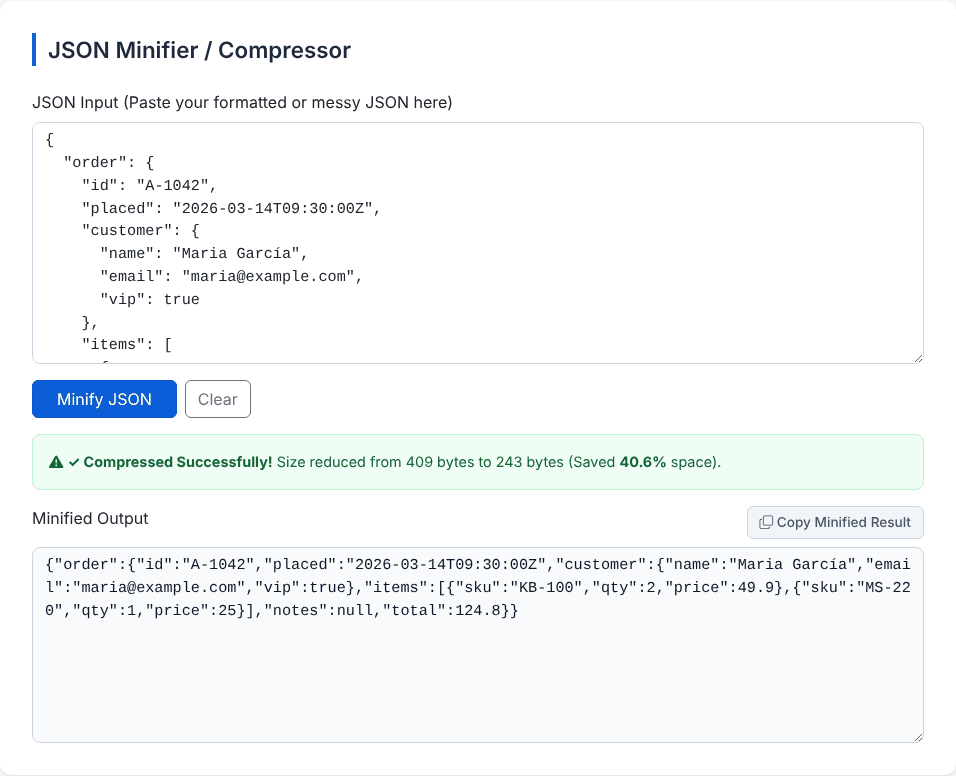
The input in that screenshot is an ordinary order record. The first 130 or so characters of the output look like this:
{"order":{"id":"A-1042","placed":"2026-03-14T09:30:00Z","customer":{"name":"Maria García","email":"maria@example.com","vip":true},"items":[{"sku":"KB-100","qty":2,"price":49.9},...The sizes are measured in bytes, not characters, using the text you pasted (with leading and trailing whitespace trimmed) as the starting point. That matters for non-English text: é counts as two bytes in UTF-8, and an emoji counts as four.
How much you actually save
The saving depends almost entirely on how the original was indented, and on how deep the data nests, because every level adds leading spaces to every line. These are real results from the tool:
Same order record, 2-space indent   409 B -> 243 B   40.6% saved
Same order record, 4-space indent   535 B -> 243 B   54.6% saved
Small deeply nested snippet         150 B ->  39 B   74.0% saved
JSON that is already minified        17 B ->  17 B    0.0% saved
Note that the minified size is the same in the first two rows: the 4-space version simply starts out larger. For a larger test we generated 200 similar product records (id, SKU, price, a tags array and a nested dimensions object). Indented with 2 spaces the file was 56,362 bytes and minified it was 28,954 bytes, a 48.6% reduction, which the tool reported exactly. With 4-space indentation the starting size is 78,366 bytes (we measured that one outside the tool), so the saving rises to 63.1%.
So a figure like "15 to 30%" is a poor rule of thumb. Pretty-printed JSON commonly shrinks by far more than that, while JSON that was already compact shrinks by nothing.
Minifying versus gzip: where the real savings are
Most web servers and APIs already compress responses with gzip or Brotli. Compression is very good at squeezing out repeated whitespace, so minifying before compression helps much less than the raw numbers suggest. On the same 200-record file, compressed with Node's zlib at its default settings:
Indented (2 spaces), gzipped   3,141 bytes
Minified, gzipped              2,647 bytes   (15.7% smaller than the gzipped indented file)
Minified, uncompressed        28,954 bytes   (gzip alone saves 90.9% of this)
Two lessons follow. First, if your responses are already compressed in transit, the extra gain from minifying is real but modest, a few hundred bytes here. Second, if they are not compressed, turning on compression gives you far more than minification ever will. This is one synthetic data set with very repetitive records, so your own ratio will differ, but the pattern holds: compression does the heavy lifting and minification adds a smaller layer on top.
Need a compact one-line version of your JSON?
Open the JSON MinifierWhen minified JSON is the right choice
- Request bodies and one-line commands. A single-line payload pastes cleanly into a
curl -dargument, a chat message or a shell script without worrying about line breaks. - Environment variables and config fields. Many deployment dashboards and
.envfiles accept a single line only. A JSON value on one line fits. - Storage with a size cap. Cookies,
localStoragevalues, URL parameters and some database columns have limits, and every saved byte counts. Minify before you store. - Embedding in HTML or logs. A one-line object fits inside a
data-attribute, a<script type="application/json">block or a log line that must not wrap. - Large payloads sent uncompressed. If compression is not available, minifying is a cheap first step.
When not to minify: files that people read and edit, such as fixtures, configuration kept in version control and documentation examples. Minified JSON makes diffs useless, because a one-character change rewrites a single enormous line. Keep the readable version in the repository and generate the compact one at build or send time. If you need to compare two versions, format both the same way first, or use the JSON Diff / Compare tool.
When the output differs from your input
Because the tool parses and rewrites your JSON, the result is an equivalent document, not a character-for-character copy with spaces removed. We ran each of these through the tool:
Input:  {"id":12345678901234567890,"price":1.10,"n":1e3,"z":-0,"s":"é\/x"}
Output: {"id":12345678901234567000,"price":1.1,"n":1000,"z":0,"s":"é/x"}- Very large integers lose digits. JavaScript numbers are exact only up to 9,007,199,254,740,991. If an ID is bigger than that (64-bit IDs from some databases and platforms), it must be a string in the JSON, or minify it with a tool that is not JavaScript-based.
- Numbers are rewritten.
1.10becomes1.1,1e3becomes1000and-0becomes0. - Escapes are resolved.
éturns intoéand\/into/. The data is identical, the text is not (and an escaped sequence of six characters can become a shorter one). - Duplicate keys collapse, and inflate the saving.
{"a":1,"a":2}became{"a":2}, and the tool reported 46.2% saved. Most of that was not whitespace; it was a whole key that disappeared. A suspiciously high saving on a small input is worth a second look. - Comments and trailing commas are rejected. Strict JSON has neither. A comment gives
Expected ',' or '}' after property value in JSON at position 7 (line 1 column 8)for the input{"a":1 /*c*/}. - One document at a time. Two objects on separate lines (JSON Lines) fail with
Unexpected non-whitespace character after JSON at position 9 (line 2 column 1). Minify each line separately.
If exact bytes matter, for instance for a signed payload or a hash, do not run it through any parse-and-rewrite tool. Compute the signature over the original text. To check that a minified copy still means the same thing as the original, put both into the JSON Diff / Compare tool.
Invalid input and small quirks
If the JSON is invalid, the red message starts with Invalid JSON Syntax for Compression: and continues with your browser's parser message, including a position and, in Chromium-based browsers, a line and column. An empty box gives Please paste your structured JSON data tree first. Our JSON Formatter guide lists the most common causes and their messages, and the JSON Validator is a lighter way to check syntax without producing output.
Two behaviours we found while testing, so they do not surprise you. If you click Minify JSON with an empty box right after a successful run, the previous output stays in the Minified Output box and the message appears in the green success styling. Clear the tool with the Clear button between documents. Also, the Minify JSON button has no icon next to its label because the icon class in the page is mistyped. That is cosmetic only.
Is it safe to paste JSON here?
We loaded the page, minified several documents, including a 56 KB one, and watched the network: after the page had loaded, no requests were made. The minifying itself happens in your browser. The page does load its styling from a public CDN when it opens, and, like most free sites, it can show advertising supplied by third parties. None of that code is given your input by our tool, but if the JSON contains credentials or personal data, remove them first or use a local command instead, such as jq -c . file.json or python3 -c "import json,sys; print(json.dumps(json.load(sys.stdin),separators=(',',':')))" < file.json.
The tool also keeps a history. It saves your last 20 runs in your browser's local storage, and for each run the first 500 characters of the input and the first 2,000 of the output. Click an entry to restore it, and use Clear All on a shared computer. Nothing in the history leaves your device.
Quick answers
Does minifying make JSON parse faster? The parser has less text to read, so it can only help, but we did not measure a meaningful difference and we would not claim one. The practical wins are smaller storage and transfer sizes and one-line convenience.
Can I get the readable version back? Yes. Paste the minified text into the JSON Formatter. You get the structure back but not any original indentation choices, and anything in the caveats above stays changed.
Is there a size limit? The tool's code sets none. Very large inputs are limited by your browser's memory. For multi-megabyte files a command-line tool is more comfortable.
Does it sort keys or remove null values? No. It only removes whitespace; the data stays as it was.
Need a compact one-line version of your JSON?
Open the JSON Minifier