Bcrypt is a function for storing passwords. You give it a password, it returns a 60-character string, and later you can ask whether a given password matches that string. You cannot get the password back from the string. Our Bcrypt Hash Generator & Verifier lets you create and check such hashes in the browser, which is handy for learning how bcrypt works, producing a test hash for a login flow you are building, or checking a hash pulled from a database. This guide explains what the output means, how to choose the cost setting, where bcrypt stops (the 72-byte limit) and what good password practice looks like around it.
Every number below comes from running the tool, and we cross-checked its output with the independent bcryptjs library in both directions: our tool verified a hash made by bcryptjs, and bcryptjs verified a hash made by our tool.
Hashing is not encryption
Encryption is reversible if you have the key. A password hash is built to be one-way: there is no key and no "decrypt" step. A site that stores bcrypt hashes cannot tell you your password, it can only test a guess. That is the property you want, because if the database leaks, the attacker gets hashes instead of passwords.
What makes bcrypt suitable is that it is deliberately slow, and the slowness is adjustable. A general-purpose hash such as SHA-256 is designed to be fast, which helps an attacker who can try billions of guesses per second against a stolen list. Bcrypt makes every guess expensive, and the cost can be raised as computers get faster. Each hash also includes its own random salt, so two users with the same password get different hashes and a precomputed table of common passwords is useless.
What is inside a bcrypt hash
Here is a hash the tool produced for the password correct horse battery staple at cost 12:
$2a$12$L0a0gmi.vaXExLpEFQJGnubS2cYk/4FxCMn.2yjpUOawwgYurnUqi
\__/\/\______________________/\_____________________________/
 |   |            |                         |
 |   |            |                         31 characters: the hash
 |   |            22 characters: the salt
 |   cost factor (12)
 algorithm version ($2a$)
It is always 60 characters: 7 for the prefix ($2a$12$), 22 for the salt and 31 for the hash itself. Because the cost and salt live inside the string, a verifier needs nothing else besides the password. Note that the version prefix may differ between tools: our generator writes $2a$, and the input hint in Verify mode shows the same style. Other libraries often write $2b$ or $2y$; they are all bcrypt, and in our tests the verifier accepted $2a$, $2b$ and $2y$ hashes alike, including ones made by the Python bcrypt library.
Generating a hash, step by step
- Make sure the Generate Hash tab at the top is active.
- Type a test password into Password. The field masks what you type; the eye button on its right shows or hides it.
- Set the Cost Factor (rounds) slider, which runs from 4 to 15 and starts at 10.
- Press Generate Hash. The hash appears under Bcrypt Hash, with a line such as "Computed in 435ms at cost factor 12."
- Use Copy to put it on the clipboard.
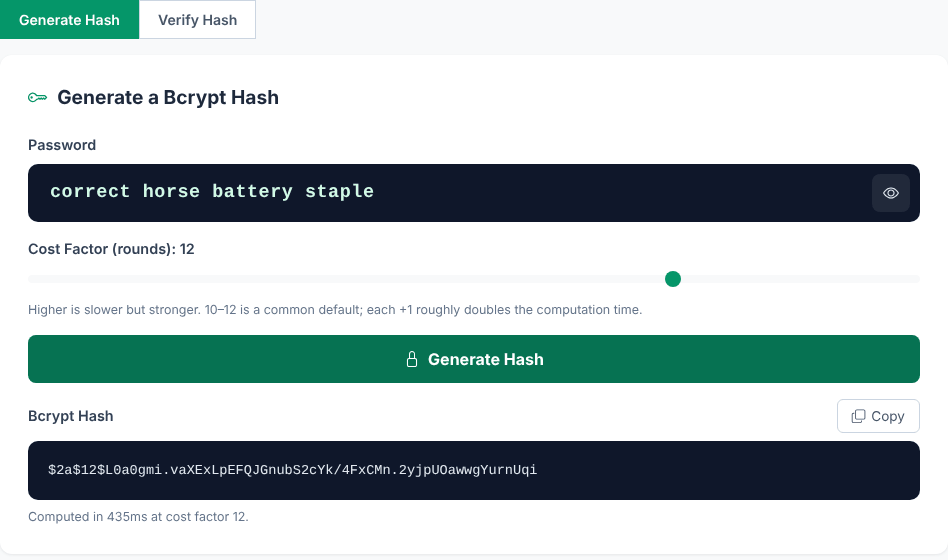
Generate the same password twice and you get two different hashes. We did this with hunter2 at cost 10 and got $2a$10$Efi341u9... and $2a$10$ta8vSiQJ.... That is correct behaviour, because a fresh 16-byte salt is made for each hash using the browser's cryptographically secure random generator. Never compare hashes by string equality; always use a verifier.
Choosing the cost factor
The cost factor is a power of two: each +1 doubles the work. Here is how long the tool took on our test machine, a sandboxed server with a headless browser, for the password above:
Cost    Time
  4     19 ms
  8     38 ms
 10    150 ms
 12    554 ms
 13   1278 ms
 14   2471 ms
 15   6656 ms
Your machine will give different numbers, and the real question is how long one hash takes on the server that will do the checking, since that is the machine that matters. A common approach is to pick the highest cost for which a login still feels quick, often a few hundred milliseconds, and to revisit the value every year or two. OWASP's password storage guidance prefers Argon2id for new systems and describes bcrypt with a work factor of at least 10 as acceptable where bcrypt is needed. Low values such as 4 exist for tests; do not use them for real accounts.
Want to see a bcrypt hash for yourself?
Open the Bcrypt Hash Generator & VerifierVerifying a password against a hash
- Switch to the Verify Hash tab.
- Enter the plaintext in Password and paste the hash into Bcrypt Hash.
- Press Verify. You see either "The password matches this hash." or "The password does NOT match this hash."
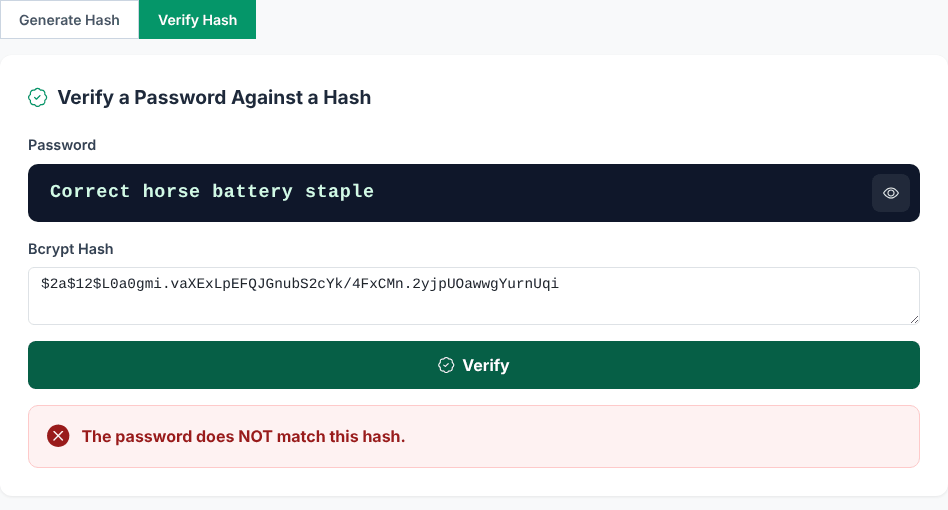
Things we tested that behave the way you would hope: a wrong capital letter gives "does NOT match", and so does a single trailing space added to the password. Leading and trailing whitespace around the pasted hash is ignored, so pasting from a terminal with a stray newline works. Other messages: "Enter the password to check." and "Paste the bcrypt hash to verify against." for empty fields, and a "That doesn't look like a valid bcrypt hash" notice for text that is not shaped like one. A hash of the right shape but with invalid characters in it shows "Invalid hash".
The 72-byte limit
Bcrypt only uses the first 72 bytes of a password. Many libraries silently ignore the rest, so two long passwords that start identically would match each other. Our tool does not do that: a password of 72 characters hashed fine, while 73 characters gave the error "Password should be at most 72 bytes long".
The limit counts bytes, not characters. Plain English letters are one byte each, but accented letters, Japanese characters and emoji take two to four. Eighteen key emoji (72 bytes) were accepted; twenty-four (96 bytes) were rejected. If your product allows long passphrases, test how your own bcrypt library behaves above 72 bytes. Some frameworks pre-hash the password with SHA-256 and encode the result before bcrypt; if you do that, do it carefully (encode the digest as base64 or hex, since a raw digest can contain zero bytes that some libraries cut off at).
Good password practice around bcrypt
A strong hash only helps if the rest of the system is sound.
- Use this page for tests, not for real secrets. It is meant for learning and debugging. Do not type a real production password or a user's password into any web tool, ours included. Use throwaway examples. Real authentication belongs in a server-side bcrypt (or Argon2id) library.
- Never use a plain fast hash for passwords. MD5, SHA-1 and SHA-256 are fine for checksums, as in our Hash Generator, and are the wrong tool for storing passwords.
- Prefer length over cleverness. A long passphrase of random words (like the one in our example) is easier to remember and harder to guess than a short string full of symbols. Our Passphrase Generator and Password Generator create random ones, and the Password Checker gives an idea of strength.
- One password per site, plus a password manager. Reuse is how a breach at one site turns into a break-in at another, whatever the hash.
- Turn on two-factor authentication where it exists, and, as a developer, limit login attempts. A slow hash makes guessing costly, but not impossible against weak passwords.
- Never log or email passwords, and do not put them into URLs or chat messages.
In code, the equivalent steps with the Node library bcryptjs are short, and this is the same calculation the tool performs:
const bcrypt = require('bcryptjs');
const hash = bcrypt.hashSync('secret123', 10);   // $2b$10$...
bcrypt.compareSync('secret123', hash);           // true
Privacy and a few limits
- Where it runs: the bcrypt code is a WebAssembly build of the hash-wasm library, shipped with the page itself. When we hashed and verified, the browser made no requests apart from fetching Bootstrap's styles, script and icon font, and nothing containing the password was sent anywhere.
- The password box is a masked text field, not a browser password field, so password managers will not treat it as a login form.
- Verify refuses very high costs. The work runs on the page itself, so a long computation would block the page, and each +1 of cost doubles the time. Verify therefore checks only hashes with a cost factor up to 16 (about 6 to 7 seconds on our test machine). For a well-formed hash with a higher cost, such as cost 31, it shows "This hash uses cost 31, which would take far too long to check in a browser. Maximum supported here: 16." and does nothing else. Check such hashes with a server-side bcrypt library instead.
- Generation is capped at cost 15; at that setting it took about 4 seconds on our test machine. While a hash is being computed the button shows a spinner and stays disabled until the result appears.
Quick answers
Can a bcrypt hash be decrypted? No. The only attack is guessing passwords and hashing each guess, which is why password strength and the cost factor both matter.
Why does my application say my hash is invalid? Check that it has exactly 60 characters, starts with $2a$, $2b$ or $2y$, and was not cut off or padded when copied.
Should I raise the cost for existing users? You can: when a user logs in successfully, rehash their password at the new cost and store the new hash.
Want to see a bcrypt hash for yourself?
Open the Bcrypt Hash Generator & Verifier